Account Settings
The Account tab in Settings lets you manage your organization's core details and, if needed, cancel your account. Only the account Owner can access Settings.
Accessing Account Settings
- Click your profile icon in the top-right corner to open the user menu
- Select Settings
- You will land on the Account tab by default
Settings has four tabs along the top: Account, Users, Billing, and Schools. All four are Owner-only.
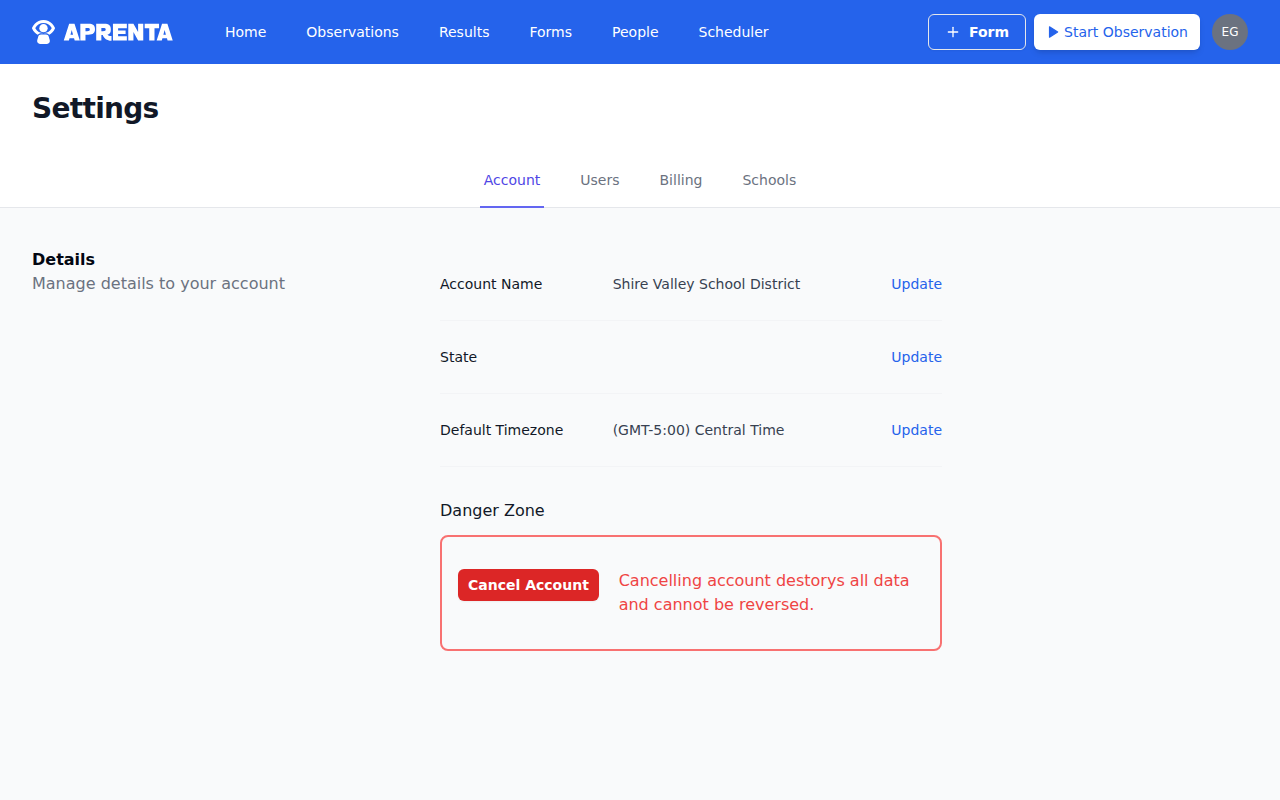
Account Details
The Account tab displays a Details section with three editable fields. Each field saves automatically when you make a change.
- Account Name -- Your organization's display name (for example, "Shire Valley School District"). This is the name other users see when they log in.
- State -- Your organization's US state. Select from the dropdown list.
- Default Timezone -- The default timezone for your account. New accounts default to America/Chicago. Changing this affects how dates and times are displayed throughout Aprenta for all users who have not set a personal timezone.
To edit a field, click on it, make your change, and select a value or press Enter. You will see a confirmation message when the update saves successfully.
Danger Zone: Cancelling Your Account
At the bottom of the Account tab, a Danger Zone section contains the Cancel Account button. This is a permanent, irreversible action.
When you cancel your account:
- All data is permanently destroyed -- observations, forms, schedules, users, schools, and results
- All team members immediately lose access
- You are signed out and redirected to the home page
- This action cannot be undone
To cancel:
- Click the red Cancel Account button
- A confirmation dialog appears asking "Are you sure you want to Cancel Account?"
- Confirm to proceed, or cancel to go back
If your district is winding down a pilot or transitioning to a different tool, consider exporting any observation data you need before cancelling.
Who Can Access Settings
The Settings link in the user menu is only visible to the account Owner. Non-owners who need to manage staff should use the People page instead, which is available to users with the Member Manager role.