Forms Overview
Observation forms are the templates that coaches and observers use to record what they see during classroom observations. Each form defines the questions, scales, counters, and other elements that guide the observation process and ensure consistent data collection across your school or district.
Accessing Forms
Coaches and form managers can access the Forms page from the top navigation bar. (Requires the Form Manager role.) The Forms page displays all forms in your account as a searchable, sortable table.
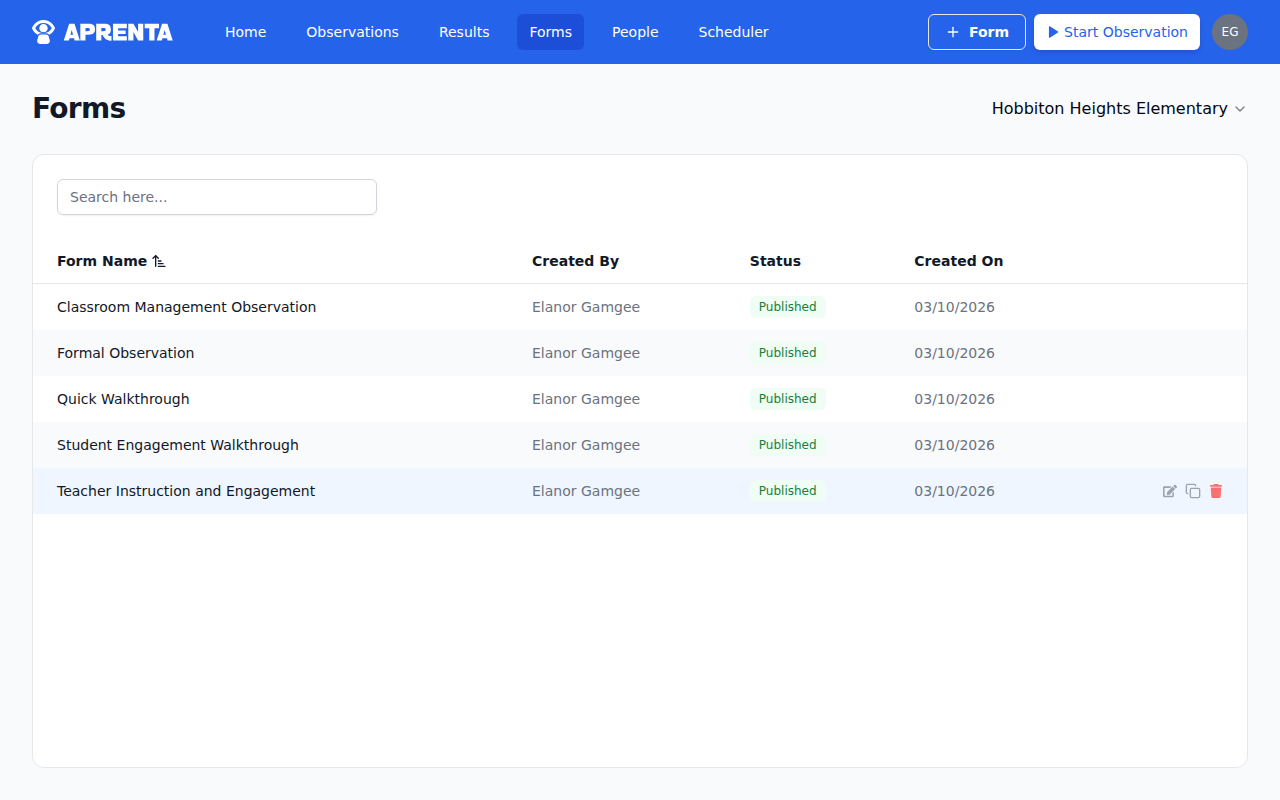
The forms table shows:
| Column | Description |
|---|---|
| Form Name | The name of the form (click to preview) |
| Created By | The user who created the form |
| Status | Draft or Published |
| Created On | Date the form was created |
| Actions | Edit, Duplicate, Delete |
You can search forms by name using the search bar at the top of the page.
Form Structure
Every form is organized into sections and elements:
- Sections are tabs that group related questions together. For example, an observation form might have sections for "Classroom Environment," "Instructional Strategies," and "Student Engagement."
- Elements are the individual questions, scales, counters, and other inputs within each section. Aprenta offers 18 element types — see Form Element Types for a complete reference.
Form Statuses
Forms have two statuses:
- Draft — The form is being built or edited. Draft forms are not available for observations. You can freely add, remove, and rearrange sections and elements.
- Published — The form is live and available for observers to use when starting observations. Published forms display a warning if you try to edit them, since changes could affect existing observation data.
Quick Actions
From the navigation bar, coaches and form managers can:
- + Form — Click the "+ Form" button in the top navigation bar to create a new blank form and go directly to the form builder.
From the forms table, you can:
- Preview — Click any form row to open a preview drawer showing the form as it will appear to observers.
- Edit — Click the edit icon to open the form in the form builder.
- Duplicate — Click the duplicate icon to create a complete copy of the form, including all sections and elements.
- Delete — Click the delete icon to remove the form. If the form has linked observations, you'll see a warning before confirming.
Related Articles
- Building a Form — Step-by-step guide to building forms in the form builder
- Form Element Types — Reference for all 18 element types
- Publishing & Sharing Forms — How to publish forms and control school access
- Form Categories — How categories organize observation data
- Email Notification Templates — Customize notification emails