Setting Up Your Profile
Your profile contains the information that other members of your organization see when they interact with you in Aprenta. Keeping it up to date helps your team identify you during observations, scheduling, and reporting.
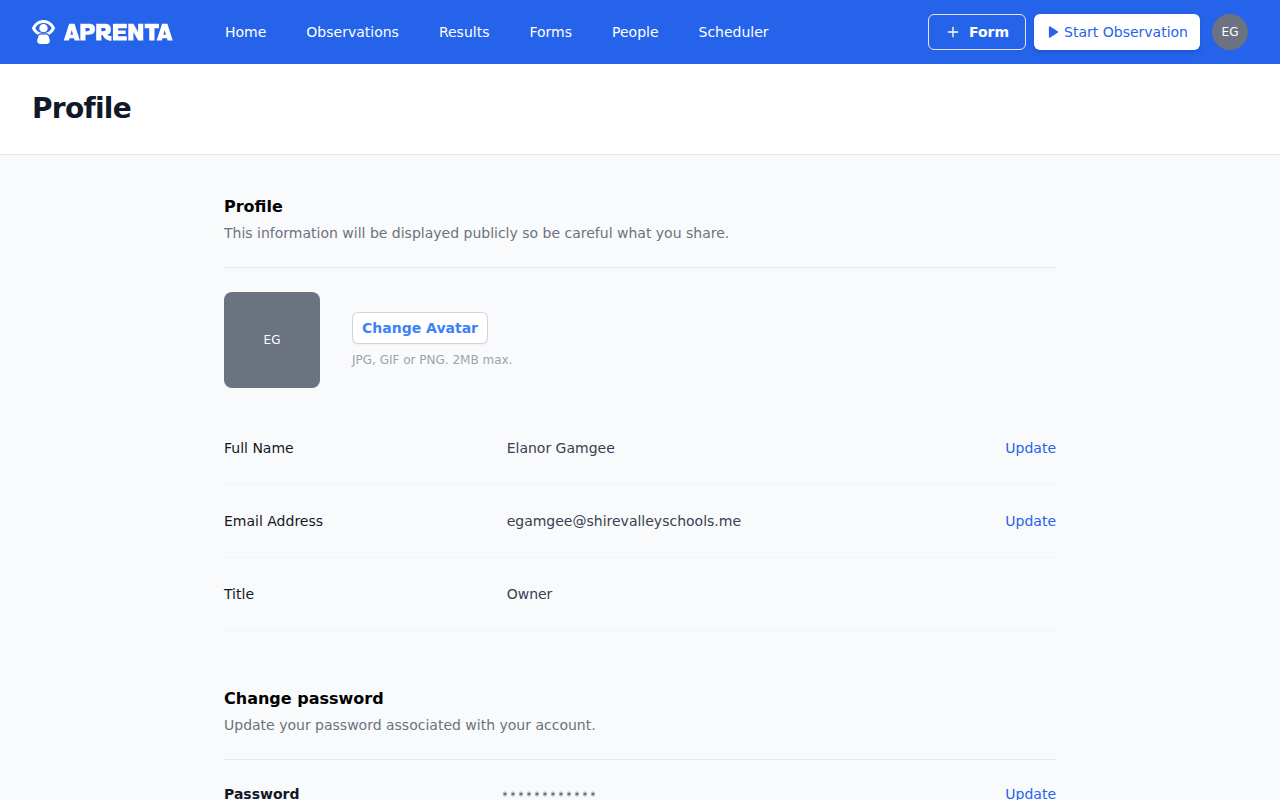
Accessing Your Profile
- Click your avatar (or initials) in the top-right corner of any page
- Select My Profile from the dropdown menu
Updating Your Avatar
At the top of your profile page, you will see your current avatar or your initials displayed in a circle. To upload a profile photo:
- Click Change Avatar
- In the Upload Avatar dialog, select an image file from your device
- Preview the image to make sure it looks right
- Click Save
Accepted formats are JPG, GIF, or PNG. The maximum file size is 2 MB.
Editing Your Information
Below the avatar, your profile displays three fields in an inline format:
- Full Name -- Your display name visible to others in your organization. Click the field, update your name, and click Update to save.
- Email Address -- The email you use to sign in and receive notifications. Click the field, enter a new email, and click Update to save.
- Title -- Your job title (such as Principal, Instructional Coach, or Teacher). This field is display-only -- it is set based on the job title selected when you were added to the organization and cannot be edited from your profile.
When you save a change, you will see a confirmation message: "Your profile has been successfully updated."
Changing Your Password
The Change password section appears below your profile information. To update your password:
- Click Update next to the password field
- Enter your new password in the New Password field
- Confirm it in the Confirm New Password field
- Press Enter to save your new password
You will see a confirmation message: "Password changed successfully." Click Cancel if you decide not to change your password.