

Account & Settings
Billing & Subscription Plans
How to manage your Aprenta subscription, choose a plan, and update payment information
Billing & Subscription Plans
Section titled “Billing & Subscription Plans”The Billing tab in Settings lets you choose a subscription plan, manage school slots, and update your payment method. Only the account Owner can access billing settings.
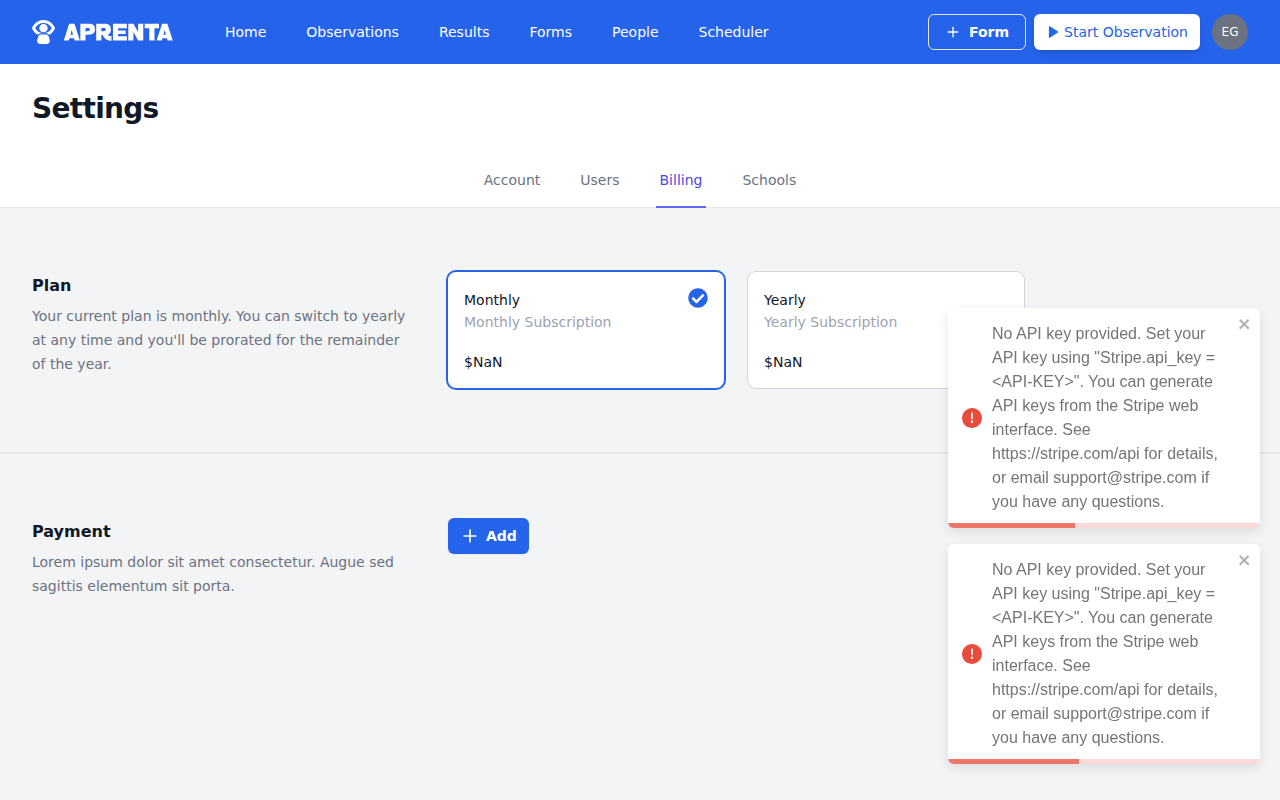
Accessing Billing
Section titled “Accessing Billing”- Click your profile icon in the top-right corner
- Select Settings
- Click the Billing tab
The Billing page has three sections: Plan at the top, School Slots in the middle, and Payment below.
Subscription Plans
Section titled “Subscription Plans”Aprenta offers two subscription options, both priced per school:
- Monthly: Billed per school, per month. Provides flexibility if your district needs to evaluate the tool before committing long-term.
- Yearly: Billed per school, per year. A good fit for districts that have adopted Aprenta as part of their ongoing professional development program.
Both plans include full access to all Aprenta features: observations, forms, scheduling, reporting, and user management. There are no feature differences between plans.
Your Current Plan
Section titled “Your Current Plan”The Billing page shows which plan you are currently on. If you are on a monthly plan, you will see:
“Your current plan is monthly. You can switch to yearly at any time and you’ll be prorated for the remainder of the year.”
If you are on a yearly plan, you will see:
“Your current plan is yearly. You can switch to monthly at any time, and at the end of your yearly billing cycle, you’ll be switched to monthly billing.”
Changing Your Plan
Section titled “Changing Your Plan”To switch between Monthly and Yearly:
- Click the plan card you want to switch to
- A confirmation modal appears with the title “Confirm Change Plan” explaining how the change will be applied:
- Switching to yearly: You will be prorated for the remainder of the year
- Switching to monthly: You will be switched to monthly billing at the end of your current yearly billing cycle
- Click to confirm the change
You will see a success message when the subscription updates.
School Slots
Section titled “School Slots”Because pricing is per school, your subscription includes a set number of school slots. The School Slots section shows how many slots your account has and how many are currently in use. If you have reached your limit, you will need to add more slots before you can create additional schools.
Payment Method
Section titled “Payment Method”The Payment section displays your current payment card on file, including the card brand, last four digits, and expiration date.
If no payment method has been added yet, you will see a + Add button to enter your card details.
Adding or Updating a Payment Method
Section titled “Adding or Updating a Payment Method”- Click + Add (if no card is on file) or Update (if you already have a card)
- Enter your card details:
- Card Number
- Expiry Date
- CVC
- Enter your Billing Info: Stripe’s address form collects your full name and billing address (street, city, state, country, and ZIP/postal code)
- Click Save
Aprenta uses Stripe for secure payment processing. Your card information is handled directly by Stripe and is never stored on Aprenta’s servers.
To cancel the form without saving, click Cancel to return to the card details view.
Free Trial
Section titled “Free Trial”New Aprenta accounts start with a free trial period. During the trial, you have full access to all features so your district can evaluate the tool with real observations. When the trial ends, you need an active subscription and payment method to continue using the service.
If your account is disabled due to missing billing information, Aprenta will prompt you to add your billing details before you can continue using the app.
Account Status and Billing
Section titled “Account Status and Billing”Your account status reflects your billing standing:
| Status | What It Means |
|---|---|
| Active | Your subscription is current and everything is working normally |
| Past Due | A payment has failed: update your payment method to resolve this |
| Cancelled | The account has been cancelled by the Owner |
| Suspended | The account has been suspended due to unresolved payment issues |
| Closed | The account has been permanently closed |
If your account enters a Past Due state, go to the Billing tab and update your payment method to restore access.
Need Help?
Section titled “Need Help?”If you have questions about billing, charges, or plan changes that are not addressed here, contact our support team for assistance.